Post-processing and visualization with PyVisA
In this example, we perform post-processing on the methane
hydrate system from one of the previous examples called “Using GROMACS”.
All post-processing is done with the PyVisA analysis tab, shown in
Fig. 53.
We will continue the study of cage-to-cage diffusion within a S1 hydrate
and add new collective variables.
Then we perform clustering, principal component analysis (PCA), and
visualization of the new results. These analysis methods require the
scikit-learn and scipy packages.
Verification status: engine – see Tutorial map.
Tutorial quick start
Best starting point: first complete Transport of methane in a sI hydrate or another path-sampling tutorial that stores the trajectories of its paths.
Requirements:
scikit-learnandscipyfor clustering and PCA, plus PyQt5 for the GUI.Compress original data:
pyvisa -i retis.toml -cmp.Add collective variables: edit
retis.tomlandorderp.py, then continue the run with[initial-path] method = "restart"and compress again.Expected output: compressed HDF5 data with the added collective variables, and clustering/PCA data saved by PyVisA.
Related check:
examples/tests/test-pyvisa/; see Example test status.
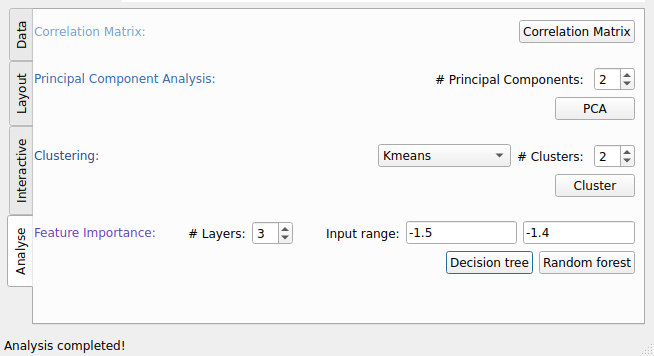
Fig. 53 Analysis tab of PyVisA with options for interactivity, animation, and post-processing.
Before we proceed with the analysis, we need to have some simulation results, so please run the example Using GROMACS first.
The example is structured as follows:
Visualization and compression
When the simulation has finished, the results can be visualized and post-processed. It is always important to save the original data before the run is continued with new collective variables. The following steps are suggested:
Compress the original data into an HDF5 file using:
pyvisa -i retis.toml -cmp
and rename the file it writes,
pyvisa_compressed_data.hdf5.zip, tostandard_simulation.hdf5.zip.For a smaller file with the order parameter data only, compress with
-ooas well, and rename that file too (for instance tostandard_simulation_oo.hdf5.zip), since it has the same name:pyvisa -i retis.toml -cmp -oo
The results are visualized from the compressed files; the GUI does not
read the .toml input of a run (it stops with “The format of
retis.toml is not supported.”). To visualize the data, run:
pyvisa -i standard_simulation.hdf5.zip
With PyVisA, you can visualize trajectories from all path ensembles and sort them by status and Monte Carlo move. Try finding and visualizing a reactive pathway by clicking on the plot and pressing “Show trj” in the Analysis tab. This highlights the points that belong to the selected trajectory. You can also customize how the visualization looks. In Fig. 54 a reactive pathway has been shown.
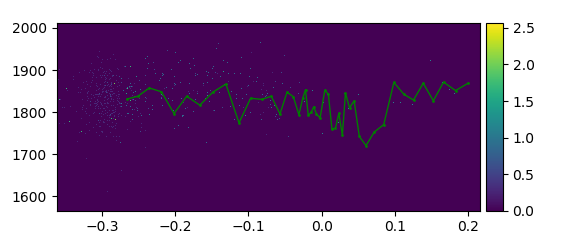
Fig. 54 Density plot of the order parameter and the kinetic energy from the methane hydrate example with a reactive pathway shown in green.
Adding new collective variables
Now that the old data has been stored, we can add two more collective
variables to the simulation.
The collective variables we introduce are the area of the six-membered ring
that the methane jumps through, and the volume of the starting cage. These
descriptors will try to capture the breathing of the starting cage.
In retis.toml, the list of collective variables gets a second entry:
collective-variable = [
    { class = "pyretis_position", index = 1472, dim = "z" },
    { class = "AreaAndVolume", module = "orderp.py" },
]
With the collective variable added to retis.toml, we also need to add
the Python script for the calculation in the orderp.py file. The
scipy package is needed to run this script, so make sure that it is
installed.
The full script is given here:
import logging
import numpy as np
from scipy.spatial import ConvexHull
from pyretis.orderparameter import OrderParameter
logger = logging.getLogger(__name__)  # pylint: disable=invalid-name
logger.addHandler(logging.NullHandler())


class AreaAndVolume(OrderParameter):
    """AreaAndVolume(OrderParameter).

    This order parameter calculates the area of the six-membered ring
    which the methane molecule jumps through when performing the L6L jump,
    and the volume of the starting cage.

    Attributes:
    ----------
    periodic : boolean
        This determines if periodic boundaries should be applied to
        the position or not.

    """

    def __init__(self, periodic=True):
        """Initialize the class."""
        super().__init__(description="Area of ring and volume "
                                     "of starting cage")
        self.periodic = periodic
        self.idx1 = np.array([220, 252, 412, 444, 796], dtype='i4')
        self.idx2 = np.array([220, 252, 284, 316, 412, 444, 540, 604,
                              668, 700, 796, 828, 924, 988, 1052, 1084,
                              1180, 1212, 1308, 1340, 1372, 1404, 1436, 1468],
                             dtype='i4')

    def calculate(self, system):
        """Calculate area and volume."""
        pos = system.pos
        ar_ring = ConvexHull(pos[self.idx1]).area
        vol_cage = ConvexHull(pos[self.idx2]).volume
        return [ar_ring, vol_cage]
The z-coordinate of the methane molecule, the first collective variable,
is the built-in pyretis_position, and nothing needs to be added to
orderp.py for it.
The run computes the new collective variables. Continue it from the
modified retis.toml, with [initial-path] method = "restart" and
a higher [simulation] steps (see adding collective variables
when you restart):
pyretis run -i retis.toml -p
The restart computes the added collective variables for the paths it
resumes, and every cycle from there on writes them, one column for the
order parameter and for each value of the collective variables, to
order.txt; the blocks written before the restart keep their
columns. Do not use pyvisa -i retis.toml -recalculate for this on a
run of PyRETIS 4: it does not give the paths back as they were
sampled, and the run can no longer be continued (see
The PyVisA application). Compress the new data and open it in the GUI:
pyvisa -i retis.toml -cmp
pyvisa -i pyvisa_compressed_data.hdf5.zip
Post-processing and clustering
Now that we have the new data, we can use PyVisA to perform clustering and PCA. The following steps can be done in the data exploration:
Go to the Analysis tab of PyVisA and press the button “Show correlations”. This will produce the correlation matrix. From these results, plot the order parameter and one of the collective variables.
Select a number of components to use in clustering and from the Analysis-selection, pick an algorithm for clustering and press the Analysis-button. This will produce a cluster plot of the chosen variables. Try to start with k-means, and then try Gaussian mixture and spectral clustering to see if there is a difference between the methods.
Try to perform a principal component analysis of the results. Begin by selecting 3 components, and PCA as the method, and press the analysis- button. This will produce the loading matrix, the scores plot from the first two components, and the cumulative explained variance. How much variance was retained? Were three components enough? Are there any strong correlations between the principal components and the original descriptors?
If you want to study the results from the principal component analysis further, the data will be stored in an HDF5 file in your simulation directory containing all the simulation data, and the data from the analysis.
Tested by
The automated coverage for this workflow is represented by
examples/tests/test-pyvisa/. The GUI portions remain
environment-dependent, while the command-line compression and
recalculation paths are the right targets for repeatable checks.