The PyVisA application
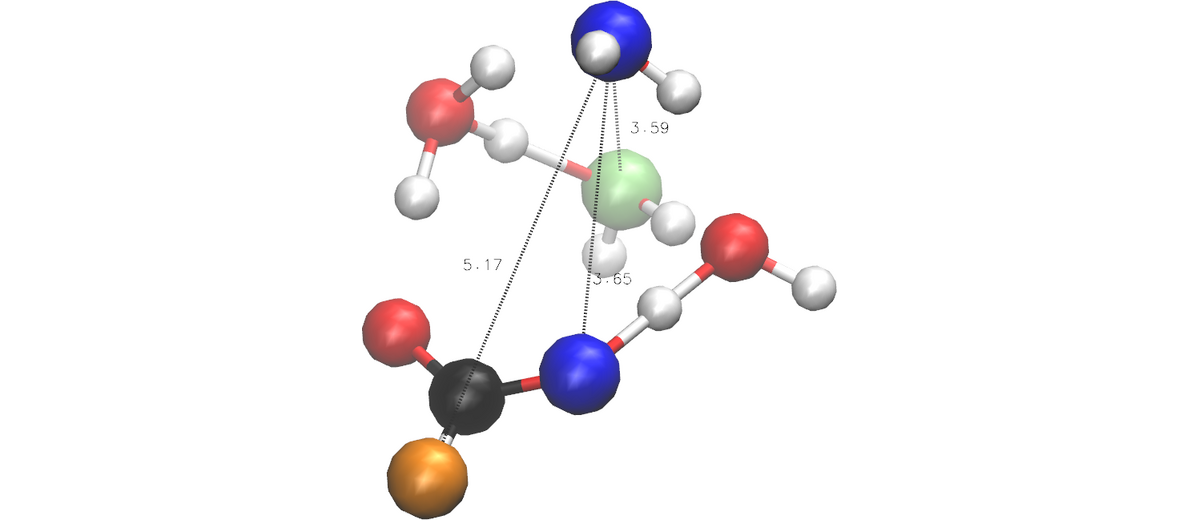
PyVisA is the analysis and visualization tool for PyRETIS simulations. It consists of two components:
A compressor that reads raw simulation output, checks consistency, and stores the data in
pyvisa_compressed_data.hdf5.zip.A visualizer (GUI) that loads the compressed file and produces interactive plots, cluster analyses, and PCA results. The GUI has additional optional requirements, which must be installed separately (see installation).
The compressor and recalculation tools can run without a graphical environment. This is useful on remote clusters and other machines where Qt or an X display is not available. A common workflow is to prepare the compact PyVisA data on the remote machine and inspect it later on a local workstation with the GUI.
ChemiTrees and post-analysis
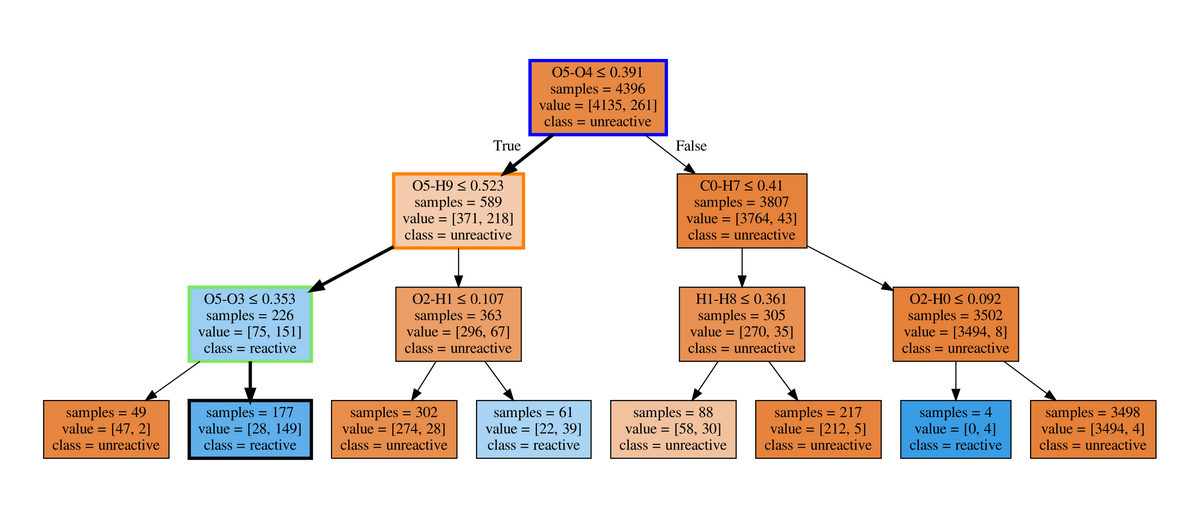
ChemiTrees are a post-analysis workflow for converting path-sampling trajectories into chemically interpretable decision trees. Instead of selecting a mechanism only by visual inspection, trajectory descriptors are classified into reactive and unreactive paths and the resulting tree identifies the geometric conditions that separate the two classes.
In the PyVisA workflow this is the last step: give the descriptors
that matter for the system as collective variables of the run (see
adding collective variables when you restart), create the compact HDF5 data set, and open it
in the GUI. Its Decision tree button builds the tree from the loaded
data, to the depth set in # Layers; the same window holds the
clustering and PCA analyses. From Python,
pyretis.pyvisa.statistical_methods.decision_tree(xdata, ydata, depth)
builds the same tree.
The ChemiTrees publication is listed in Published applications of PyRETIS; its input files are not available yet.
The general syntax is:
pyvisa [-h] [-i INPUT] [-V] [-cmp] [-data DATA] [-recalculate] [-oo] [-p] [-w N]
where the arguments are described in Table 54.
Flags can be freely combined: -recalculate and -cmp may be given
together to run recalculation followed by compression in one step.
If neither is set, the GUI is launched.
Choosing a workflow
The most common PyVisA workflows are:
Remote or headless use: run the compressor from the command line. This only writes files and does not open the GUI.
Local GUI use: install the GUI requirements, compress the simulation output and open the compressed file.
Remote GUI use: install the GUI requirements on the remote machine and open the compressed file there through an environment that can show graphical applications, such as X11 forwarding or a remote desktop session.
Remote or headless usage
On a remote machine, first go to the completed simulation directory. This
is the directory containing the original PyRETIS input file and the
numbered ensemble folders such as 000, 001, and 002.
To compress the simulation output without opening the GUI, run:
pyvisa -i retis.toml -cmp
This creates pyvisa_compressed_data.hdf5.zip in the current
directory. The original simulation output is not modified.
If the remote machine should only package order parameter data, use:
pyvisa -i retis.toml -cmp -oo
The -oo option skips the energy files and can be useful when only the
order parameter and collective variable data are needed.
-recalculate computes the order parameter and the collective
variables of the input again from the stored trajectory files and
replaces the order.txt of every ensemble and of every stored path
(the earlier files are kept under numbered names, order.txt_000).
On a run of PyRETIS 4 it does not give the paths back as they were
sampled:
a path stored in more than one trajectory file, as the paths of shooting moves are, is read file by file: its frames come out of order, and the shooting point can appear twice;
each ensemble’s
order.txtthen holds every stored path once instead of one path per cycle, so the compressed data lose the cycles in which a path was kept;the run can no longer be continued:
pyretis runstops withTrajectory/order frame count differs.
Do not use -recalculate on a run of PyRETIS 4. If you already
have, put each order.txt_000 back in place of the order.txt in
its folder, for instance with this command in the simulation directory;
the run then continues as before:
find . -name 'order.txt_000' -exec sh -c 'mv "$1" "${1%_000}"' sh {} \;
To have more collective variables in order.txt, give them as
[[collective-variable]] sections in the input of the run, or add
them when you restart (see adding collective variables when you
restart), for the cycles that follow.
With -recalculate, the remote environment needs the Python packages
required to read the trajectory files and execute the order parameter
code used by the simulation. The GUI dependencies are only needed when
a PyVisA window will be opened.
Local GUI usage
Copy the compressed file from the remote machine to a local workstation where the PyVisA GUI requirements are installed:
scp user@remote.host:/path/to/simulation/pyvisa_compressed_data.hdf5.zip .
Then open it locally:
pyvisa -i pyvisa_compressed_data.hdf5.zip
The GUI does not open a PyRETIS 4 run from its TOML input:
pyvisa -i retis.toml without -cmp or -recalculate stops with
The format of retis.toml is not supported., and so does
pyvisa -i output.toml. Compress the run first, then open the
compressed file:
pyvisa -i retis.toml -cmp
pyvisa -i pyvisa_compressed_data.hdf5.zip
Direct remote GUI usage
Direct remote GUI usage is possible when the remote environment can show graphical applications. Install the GUI requirements on the remote machine, connect with display forwarding or a remote desktop session, and compress and open the data in the simulation directory:
pyvisa -i retis.toml -cmp
pyvisa -i pyvisa_compressed_data.hdf5.zip
A window shown over the network can be slow to respond. Copying the compressed file and opening it locally is usually the simpler workflow.
Example use
Compressor
Compress raw simulation output into
pyvisa_compressed_data.hdf5.zip:pyvisa -i retis.toml -cmp
Compress using only order parameter files (faster, smaller output):
pyvisa -i retis.toml -cmp -oo
Visualization GUI
Open the visualization GUI from a compressed file:
pyvisa -i pyvisa_compressed_data.hdf5.zip
For a guided walkthrough of these features, see PyVisA: Visualization and analysis of path sampling results and Post-processing and visualization with PyVisA.
Input arguments
Argument |
Description |
|---|---|
|
Show the help message and exit. |
|
The input file of the run ( |
|
Show the version number and exit. |
|
Run the compressor tool to generate
|
|
With |
|
Recompute the order parameter and the collective variables of
the input from trajectory files, replacing their |
|
Use only data from |
|
Show progress bars during recalculation. |
|
Number of parallel worker processes for recalculation (default: all CPU cores). |
Visualisation and Analysis with PyVisA
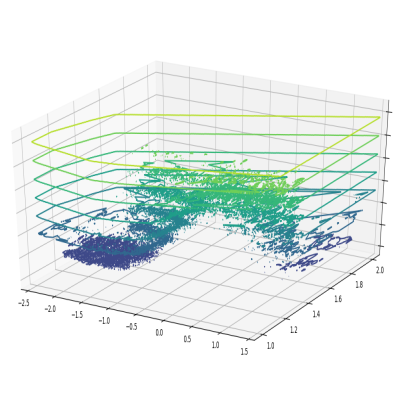
PyVisA
Compress, inspect and visualise path-sampling trajectories from the tutorial suite.
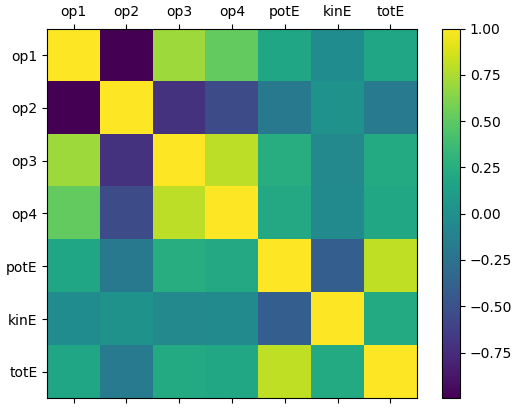
PyVisA analysis
Add collective variables, run PCA and cluster trajectories from the methane-hydrate example.
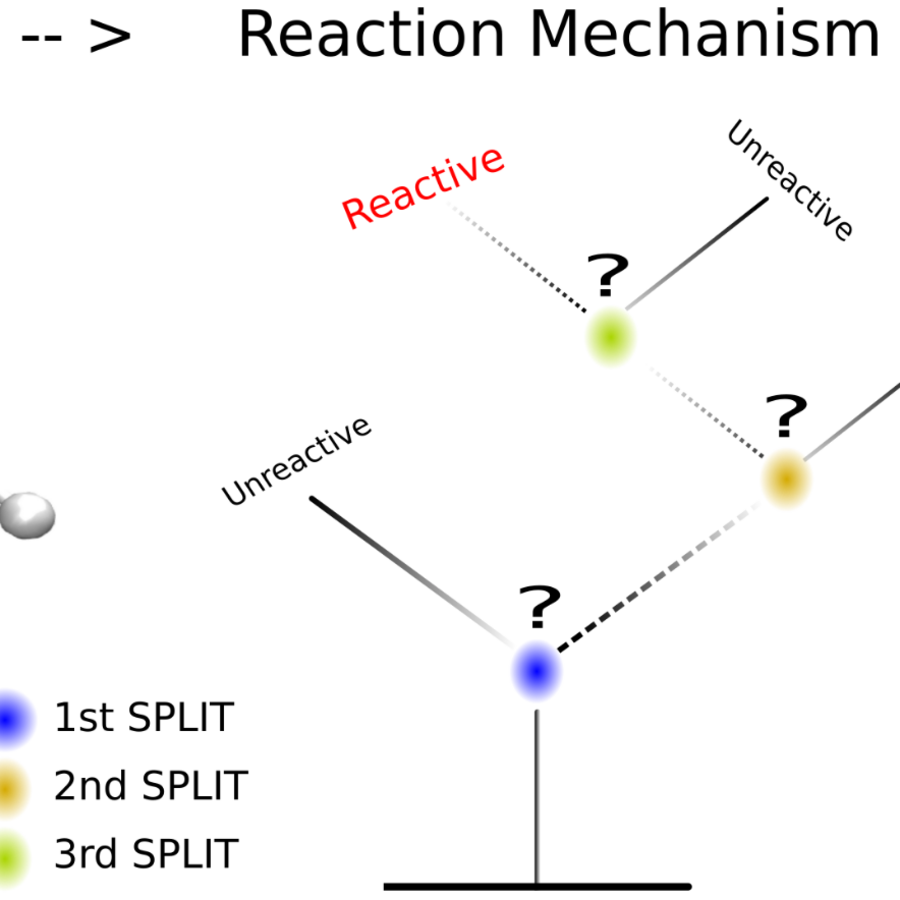
ChemiTrees
Use decision-tree post-analysis to identify molecular descriptors that distinguish reactive and unreactive path-sampling trajectories.